
ACEMAGIC Mini PC Not Connecting to a Monitor: Fixes by Symptom and Port
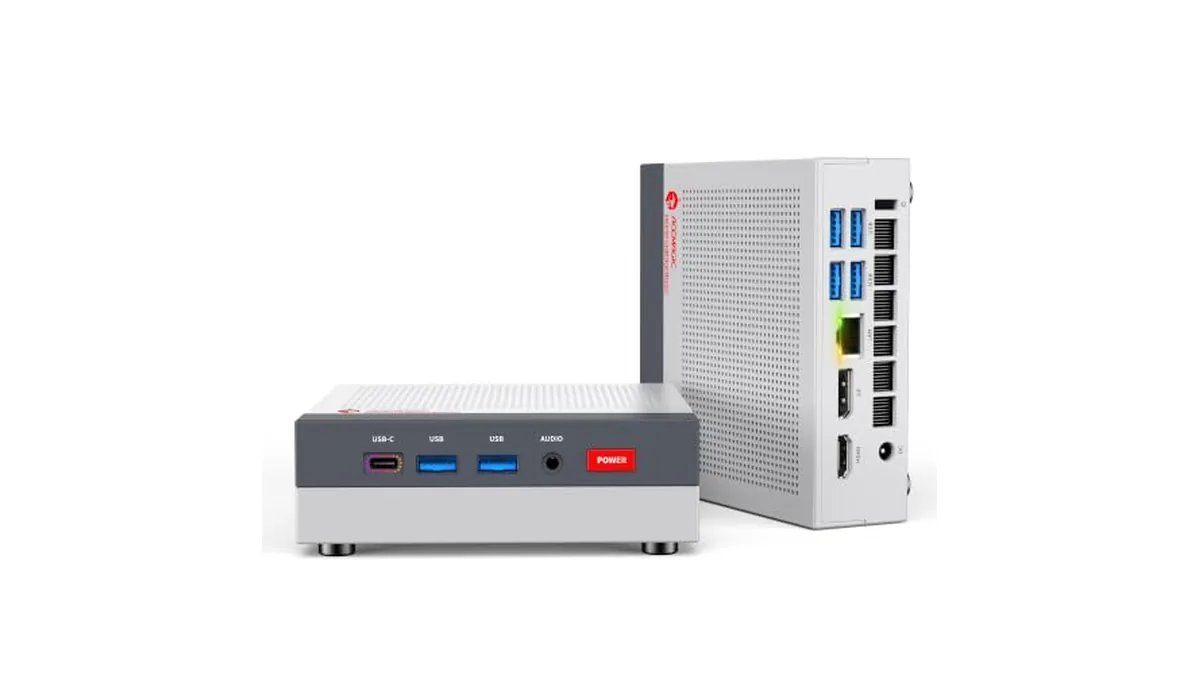
When a new mini PC shows a black screen, the PC is usually fine. The fault tends to be the input the monitor is set to, the cable, or a port that can't do what you're asking of it. ACEMAGIC's models don't all have the same video outputs, so the fix depends on which one you own. Find your symptom below, then check the port table at the end for your model.
The monitor says "No signal"
- Check the monitor's input. Most monitors don't switch on their own. Use the monitor's menu to select the input you've plugged into (HDMI 1, HDMI 2, DisplayPort or USB-C).
- Connect the monitor first, then switch the PC on. Some monitors only wake for a signal that's present at boot.
- Start with HDMI. Every ACEMAGIC model we cover has an HDMI port, and it doesn't depend on a USB-C cable carrying video. If an HDMI cable came in the box, use that one.
- Reseat both ends of the cable, and try a different cable if you have one.
- Check the power light on the PC. If it's off, the problem is power, and the adapter has to match your model's voltage and plug. Our ACEMAGIC power supply guide lists the adapter specs by model.
If the screen stays black even on HDMI with a known-good cable, try a different monitor or a TV. That tells you quickly whether the PC or the screen is the problem.
HDMI works, but USB-C gives no picture
- Check the cable. A USB-C cable that only charges or only moves data won't carry video. It needs to support DisplayPort video, or be sold as a video or Thunderbolt/USB4 cable.
- Check the monitor. It needs a USB-C input with DisplayPort Alt Mode, or use a USB-C to DisplayPort or USB-C to HDMI adapter.
- Check the model. The V1 has no USB-C port at all, so it drives screens from HDMI and DisplayPort only.
On the K1, M1 and M5, the video-capable USB-C port carries DisplayPort 1.4. On the X3, it's the USB4 port.
The third screen is blank or runs at 30 Hz
- Count your outputs. Three screens need all three video ports in use: HDMI, DisplayPort and USB-C (or USB4 on the X3). The V1 supports two screens.
- On the K1, expect a lower refresh rate. Each K1 port runs 4K at 60 Hz on its own, but with three screens connected, ACEMAGIC Japan gives the maximum as 4K at 30 Hz. Two 4K screens at 60 Hz is the smoother setup. Our K1 Ryzen R2544 guide covers the rest of what the chip can and can't do.
- In Windows, open Settings, then System, then Display, and click Detect. Then set each screen to Extend.
4K at 120 Hz or 8K isn't available
Only the X3 goes past 4K at 60 Hz. ACEMAGIC gives its outputs as HDMI 2.1, DisplayPort 2.0 and USB4, for 8K at 60 Hz or 4K at 120 Hz.
- Use a cable rated for the mode. Older HDMI cables often top out well below 4K at 120 Hz.
- Plug into an input on the monitor or TV that supports the higher mode. On many TVs, not every HDMI input supports it.
- Set the refresh rate in Windows under Settings, System, Display, Advanced display.
The K1, M1, M5 and V1 use HDMI 2.0 and DisplayPort 1.4, and ACEMAGIC gives 4K at 60 Hz as the limit on each port.
Ports by model
| Model | HDMI | DisplayPort | USB-C video | Max screens |
|---|---|---|---|---|
| K1 | HDMI 2.0, 4K 60 Hz | DP 1.4, 4K 60 Hz | USB-C (DP 1.4), 4K 60 Hz | 3 (4K 30 Hz with all three) |
| M1 | HDMI 2.0, 4K 60 Hz | DP 1.4, 4K 60 Hz | USB-C (DP 1.4), 4K 60 Hz | 3 |
| M5 | HDMI 2.0, 4K 60 Hz | DP 1.4, 4K 60 Hz | USB-C (DP 1.4), 4K 60 Hz | 3 |
| V1 | HDMI 2.0, 4K 60 Hz | DP 1.4, 4K 60 Hz | None | 2 |
| X3 | HDMI 2.1 | DP 2.0 | USB4 | 3 (8K 60 Hz or 4K 120 Hz) |
If you need to reach the firmware screen to check settings, our guide to the ACEMAGIC BIOS key covers it. For help choosing between models by their outputs, see All Mini PCs.