
ACEMAGIC M1 SSD Upgrade: What Fits, What Doesn't, and How to Add a Second Drive
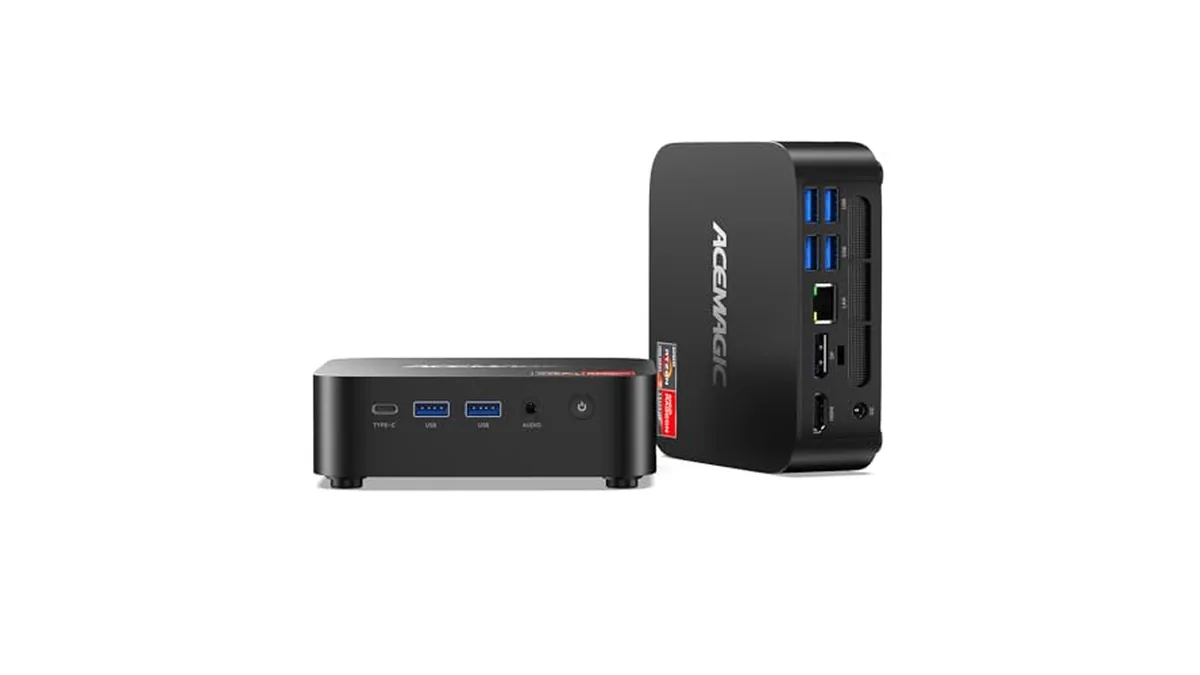
Storage is the one part of the ACEMAGIC M1 you can upgrade. ACEMAGIC's spec sheet for the Ryzen 7 7735HS model gives it two M.2 2280 slots, and the 1TB drive it ships with uses one of them. So you can usually add a second drive instead of replacing the first.
The short answer
- Slots: two M.2 2280
- Drive type: NVMe only, PCIe 3.0 or PCIe 4.0
- SATA M.2 drives: not supported
- Maximum: up to 4TB, per ACEMAGIC
- Drive it ships with: 1TB M.2 2280 NVMe PCIe 3.0 x4
- Memory: 24GB LPDDR5-5500, which ACEMAGIC lists as non-expandable
What to buy, and what to skip
Buy an M.2 2280 NVMe SSD. "2280" is the physical size, 22mm wide and 80mm long, and it's the only length ACEMAGIC lists for the M1's slots. A PCIe 4.0 drive works, and so does a PCIe 3.0 one. Stay within ACEMAGIC's 4TB limit.
Skip these:
- M.2 SATA SSDs. They look almost identical to NVMe drives, but the M1 doesn't support them. Check the drive's description for "NVMe" before you order.
- 2.5-inch SATA drives. There's no bay for them.
- Shorter or longer M.2 sizes, such as 2230 or 22110. They aren't what the slots are built for.
If you have an old SATA M.2 drive to reuse, the M1 won't take it. Among ACEMAGIC's Ryzen models, the K1 is the one with a slot that accepts SATA, as covered in our K1 vs M1 comparison.
Path A: Add a second drive (keep Windows where it is)
This is the simplest upgrade. The original drive keeps Windows 11 Pro, and the new one becomes extra space for games, media or backups.
- Shut Windows down fully and unplug the power adapter.
- Open the case. ACEMAGIC's support team can confirm the steps for your unit if you're unsure.
- Fit the new NVMe drive into the free M.2 2280 slot and secure it.
- Close the case, plug in and start Windows.
- Open Disk Management. Windows will ask you to initialize the new disk. Choose GPT, then create a new volume and format it as NTFS.
The new drive then shows up in File Explorer with its own letter.
Path B: Replace the boot drive with a bigger one
If you'd rather have one big drive with Windows on it:
- Back up anything you can't lose.
- Copy the old drive to the new one with cloning software, using a USB enclosure or the second slot. Or plan a clean install of Windows.
- Put the new drive where you want it, and remove the old one if you're freeing up the slot.
- If the PC doesn't boot from the new drive, check the boot order in the BIOS. Our guide to the ACEMAGIC BIOS key shows how to get in.
What about memory?
There's nothing to upgrade there. ACEMAGIC lists the M1's 24GB of LPDDR5-5500 as non-expandable, so it's soldered to the board. That's plenty for office work, media and the light gaming the Radeon 680M handles, but it's a permanent amount. If you want memory you can add to later, look at the ACEMAGIC M5, whose i7-14650HX version has two SO-DIMM slots.
The M1 we link to
The ACEMAGIC M1 with Ryzen 7 7735HS, 24GB LPDDR5 and a 1TB SSD is the configuration covered here. Besides the storage slots, ACEMAGIC lists:
- 2.5Gbps Ethernet, Wi-Fi 6 and Bluetooth 5.2
- HDMI 2.0, DisplayPort 1.4 and a USB-C port with DisplayPort, each driving 4K at 60Hz
- two 10Gbps USB-A ports on the front and four 5Gbps USB-A ports on the back
- a 128.2 x 128.2 x 41mm case
The front 10Gbps ports are also the quickest way to move files onto your new drive from an external SSD.
See the rest of the range on ACEMAGIC Performance Mini PCs.