
Mini PC vs Laptop: Which Fits Your Desk?
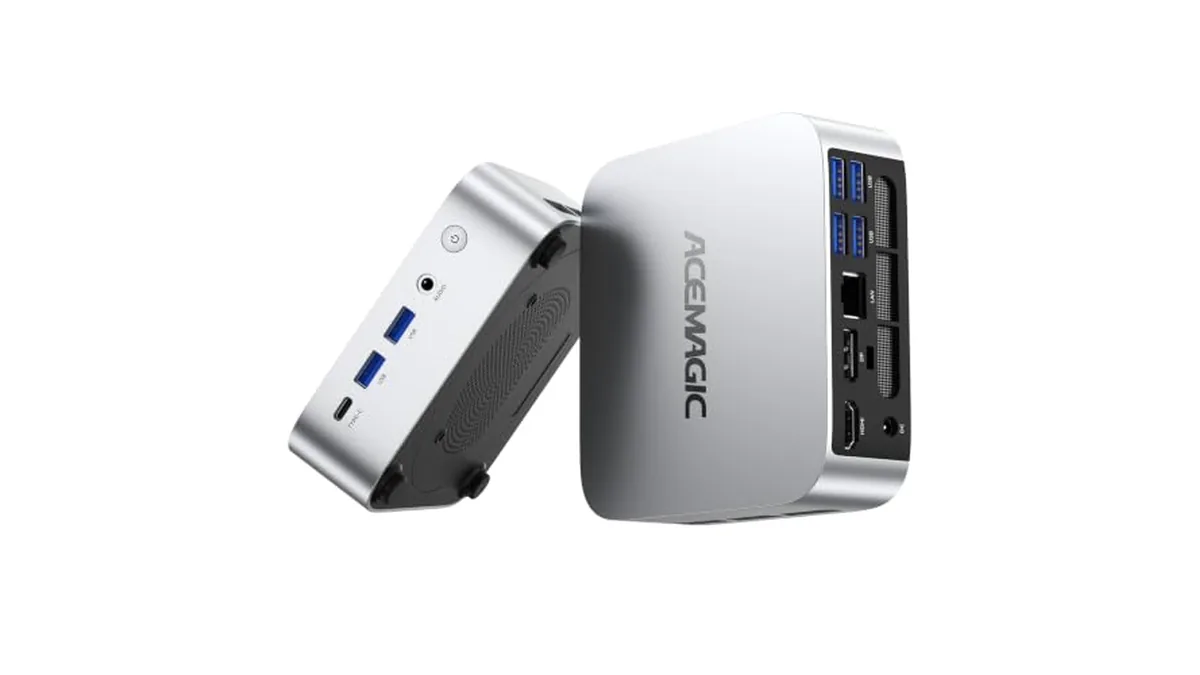
A mini PC suits a desk that already has a monitor and peripherals. A laptop suits work that must travel with its own screen and battery. Use the ACEMAGIC K1 as a concrete small-desktop example, then compare the particular laptop you are considering rather than awarding points to an entire category.
Price the usable setup
Start with what is on the desk now. If you already have a display, keyboard and mouse you like, a mini PC lets you keep using them. If the desk is empty, add those purchases to the computer budget. Include any display adapter and the cables needed to connect the whole setup. The box price alone does not describe the cost of getting to work.
Do the same exercise for a laptop. Its built-in screen may be enough, or you may still want a larger monitor, external keyboard and dock. Compare two complete arrangements that serve the same job. Without that step, an apparently cheaper machine may simply leave more of your requirements unpriced.
Make a port map before buying a dock
List the devices that stay connected and the ones you attach temporarily. A keyboard receiver, external drive and webcam each occupy a connection even when none seems important on its own. Put the cable type beside each item so that several USB sockets do not hide a missing display connection.
The K1 R2544 has six USB-A ports, USB-C with video, Gigabit Ethernet and audio. Its display outputs include HDMI and DisplayPort. That can reduce the need for a dock, but a specialty card reader or different monitor cable may still need an adapter. Check the ports on the exact laptop too; laptops vary considerably, and some already cover everything on a simple desk.
Plan the screens around the work
A laptop's screen is useful when you leave the desk and can remain an extra display when docked. A mini PC contributes no screen of its own. Decide where a document, video call and main application will sit before buying hardware for a multi-monitor arrangement you may not use.
Output names alone do not establish the resolution and refresh rate available in every combination. Match the selected K1 configuration, monitor inputs and required display mode before ordering cables. If one large screen handles your work comfortably, extra outputs are spare capacity rather than a reason to buy more monitors.
Check whether the upgrade solves your problem
The K1 R2544 provides two DDR4 SO-DIMM slots, supporting up to 32 GB, and two M.2 slots with up to 4 TB total storage. Those are useful options when you expect a memory or storage constraint. They do not make every component replaceable, and extra memory does not turn an unsuitable processor into a different class of machine.
Check the installed configuration as well as the maximum. An upgrade may involve replacing existing modules rather than adding to an empty slot. Storage compatibility also matters: confirm the drive type for the intended slot before buying. Compare the M5 separately if your requirements differ; sharing the mini PC format does not make its parts or limits interchangeable with the K1.
Cooling is a question, not a benchmark
The K1 uses an aluminum heatsink and an 80 mm fan with dual air outlets. That describes its cooling hardware. It does not establish that it finishes an export faster than a laptop, nor does it establish how loud it sounds in your room. The processor and the task still belong in that comparison.
For long workloads, seek evidence for the specific machines instead of assuming every small desktop outperforms every portable. On the desk, leave the cooling path unobstructed. Do not tuck the computer into a cramped enclosure merely because its footprint fits. A tidy installation still needs access for cables and routine maintenance.
Decide how much movement you really need
The K1 measures about 128.2 × 128.2 × 41 mm, which makes the unit easy to pack between equipped desks. It still needs external power, a display and input devices at the destination. Moving it from home to an office with a ready workstation is different from opening a computer on a train.
A laptop is the straightforward choice for the latter. Its battery also lets you continue using the computer briefly when mains power is unavailable, subject to that laptop's battery condition. If meetings and classes move around, count those occasions honestly. A smaller desktop does not remove the need for a complete setup wherever you stop.
Try a desk-only day before retiring the laptop
If you already own a laptop, use it only at the proposed desk for a normal workday. Note every time you need to move it, join a call elsewhere or work away from an outlet. This is a practical way to find mobility requirements that a shopping checklist can miss. Borrowing a fixed workstation for a day can serve the same purpose.
Then check the software and files you would need on a replacement machine. Identify what is stored locally, what must be installed again and what requires a separate sign-in. Make that list before deciding the old laptop will remain a convenient backup. A spare computer is useful only when it can actually open the work you need.
Arrange the desk before hiding the computer
The K1 includes a VESA mount for placing it behind a compatible monitor. Before committing to that arrangement, check access to the power button and the ports you use frequently. A hidden box can be awkward if every temporary drive requires reaching behind the display.
Lay out the cables while everything is accessible, then decide what should stay within reach. Choose from All Mini PCs once the desk requirements are clear. Keep a second laptop only if it serves a distinct mobile role; maintaining two computers adds another set of files, chargers and updates to manage.